Intro#
Welcome back all to another post in the 100 Days of DevOps series! This post is going to be much lighter on content than the previous two for the most part - a lot of the git tasks ahead are straightforward ones and don’t require as much explanation or troubleshooting as some of the server setup we’ve been doing. Even so, it’s still great knowledge - if you enjoy this post, make sure to check out the first two from the series button at the top and bottom of this page.
It’s also worth noting that this post is currently a work-in-progress - you may see some quick notes from me completing the challenges. As I work through writing them up, they’ll turn into a much nicer writeup - promise!
With that, let’s start knocking down some git tasks!
Spoiler alert!
In case you’re squeamish about this sort of thing, there are a bunch of spoilers ahead - proceed at your own (self-learning) risk. I’ll be diving into the nitty-gritty behind solutions where I can, so hopefully you’ll be able to learn a thing or two.
It’s also worth noting that if you’re working alongside me, you’ll see different users, IP addresses, passwords, or even completely different solutions occasionally - they rotate these with each challenge spawn on most challenges.
Day 21: Set Up Git Repository on Storage Server#
Problem Prompt
The Nautilus development team has provided requirements to the DevOps team for a new application development project, specifically requesting the establishment of a Git repository. Follow the instructions below to create the Git repository on the Storage server in the Stratos DC:
- Utilize yum to install the git package on the Storage Server.
- Create a bare repository named /opt/games.git (ensure exact name usage).
This one’s pretty straightforward - all we have to do is initialize a bare git repo. First, SSH to the server and check if git is installed; if not, use dnf or yum to install it:
[natasha@ststor01 ~]$ dnf list --installed | grep git
crontabs.noarch                                1.11-26.20190603git.el9          @baseos
crypto-policies.noarch                         20251126-1.gite9c4db2.el9        @System
crypto-policies-scripts.noarch                 20251126-1.gite9c4db2.el9        @System
exempi.x86_64                                  2.6.0-0.2.20211007gite23c213.el9 @appstream
[natasha@ststor01 ~]$ sudo dnf install -y git
[...]
Dependencies resolved.
=================================================================================================================
 Package                        Architecture         Version                       Repository               Size
=================================================================================================================
Installing:
 git                            x86_64               2.52.0-1.el9                  appstream                39 k
[...]
Installed:
  git-2.52.0-1.el9.x86_64                git-core-2.52.0-1.el9.x86_64         git-core-doc-2.52.0-1.el9.noarch
  less-590-6.el9.x86_64                  perl-Error-1:0.17029-7.el9.noarch    perl-Git-2.52.0-1.el9.noarch
  perl-TermReadKey-2.38-11.el9.x86_64    perl-lib-0.65-483.el9.x86_64

Complete!
Then, we navigate to the directory and initialize a bare git repo!
[natasha@ststor01 ~]$ cd /opt
[natasha@ststor01 ~]$ sudo git init --bare games.git
hint: Using 'master' as the name for the initial branch. This default branch name
hint: will change to "main" in Git 3.0. To configure the initial branch name
hint: to use in all of your new repositories, which will suppress this warning,
hint: call:
hint:
hint:   git config --global init.defaultBranch <name>
hint:
hint: Names commonly chosen instead of 'master' are 'main', 'trunk' and
hint: 'development'. The just-created branch can be renamed via this command:
hint:
hint:   git branch -m <name>
hint:
hint: Disable this message with "git config set advice.defaultBranchName false"
Initialized empty Git repository in /opt/games.git/
Day 22: Clone Git Repository on Storage Server#
Problem Prompt
The DevOps team established a new Git repository last week, which remains unused at present. However, the Nautilus application development team now requires a copy of this repository on the Storage Server in the Stratos DC. Follow the provided details to clone the repository:
- The repository to be cloned is located at /opt/cluster.git
- Clone this Git repository to the /usr/src/kodekloudrepos directory. Perform this task using the natasha user, and ensure that no modifications are made to the repository or existing directories, such as changing permissions or making unauthorized alterations.
This is another straightforward one - SSH into the storage server as natasha, and just clone the repository like shown:
[natasha@ststor01 ~]$ cd /usr/src/kodekloudrepos/
[natasha@ststor01 kodekloudrepos]$ git clone /opt/news.git
Cloning into 'news'...
warning: You appear to have cloned an empty repository.
done.
And verifying the repo was cloned:
[natasha@ststor01 kodekloudrepos]$ ls -la
total 16
drwxr-xr-x 3 natasha natasha 4096 Jul 16 13:50 .
drwxr-xr-x 1 root    root    4096 Jul 16 13:46 ..
drwxr-xr-x 3 natasha natasha 4096 Jul 16 13:50 news
Two easy ones down - on to Day 23!
Day 23: Fork a Git Repository#
Problem Prompt
There is a Git server utilized by the Nautilus project teams. Recently, a new developer named Jon joined the team and needs to begin working on a project. To begin, he must fork an existing Git repository. Follow the steps below:
- Click on the Gitea UI button located on the top bar to access the Gitea page.
- Login to Gitea server using username jon and password Jon_pass123.
- Once logged in, locate the Git repository named sarah/story-blog and fork it under the jon user.
Note: For tasks requiring web UI changes, screenshots are necessary for review purposes. Additionally, consider utilizing screen recording software such as loom.com to record and share your task completion process.
This one should be very easy - all of the work will be done via the Gitea UI, no CLI necessary.
First, sign in as jon on the site - once you’re at jon’s dashboard, click “Explore” in the top menu. It should pull up a listing of all of the public repositories on the Gitea instance; in that list, you should see one labeled sarah/story-blog.
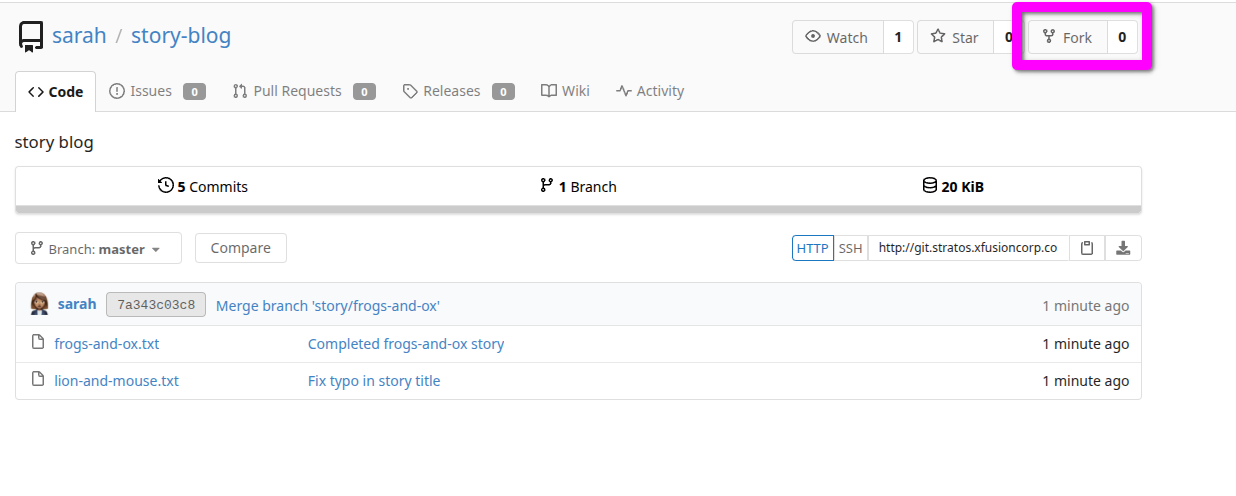
Next, we’ll go to create a fork of the sarah/story-blog repo by clicking the hyperlink to it and once it loads, clicking the “Fork” button in the top-right of the UI:
It should bring up a modal to create a new fork - all of the default information should be fine for our purposes. The grader shouldn’t look for anything specific, only the presence of the forked repository.
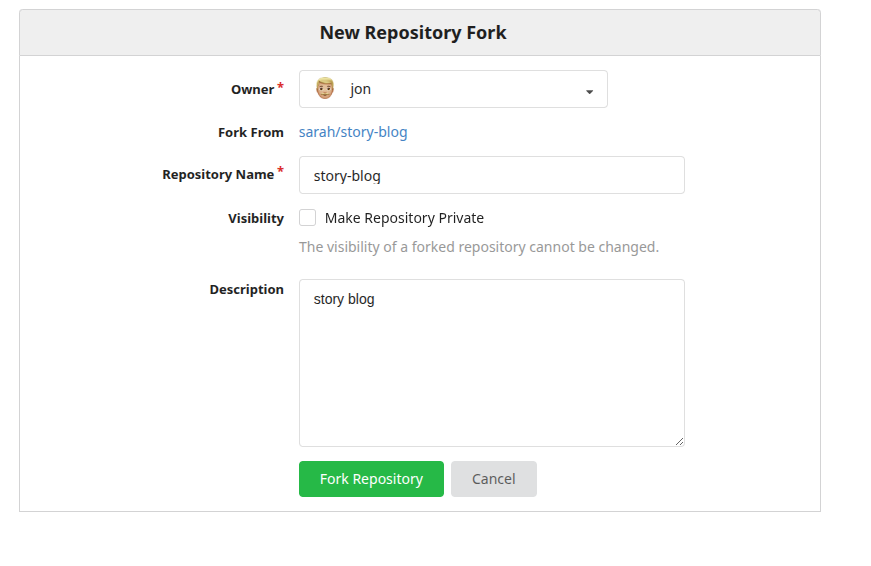
Once you click the “Fork Repository” button, it’ll create a clone of the repository in its current state under jon’s account. To verify it worked, navigate back to the main dashboard by clicking the green Gitea logo in the upper-left corner of the site. Instead of a blank page, you should now see a listing of the repositories under jon’s account on the right - including one named jon/story-blog.
Day 24: Git Create Branches#
Problem Prompt
Nautilus developers are actively working on one of the project repositories, /usr/src/kodekloudrepos/ecommerce. Recently, they decided to implement some new features in the application, and they want to maintain those new changes in a separate branch. Below are the requirements that have been shared with the DevOps team:
On Storage server in Stratos DC create a new branch xfusioncorp_ecommerce from master branch in /usr/src/kodekloudrepos/ecommerce git repo.
Please do not try to make any changes in the code.
This one is a pretty foundational skill - being able to create feature branches is part-and-parcel to keeping development clean between a team that’s all flying to get features pushed out as soon as possible. It helps you keep you developing on your piece of the functionality while minimizing conflicts, allowing others to modify the same file you’re working on without either of you overwriting each other’s code.
As with lots of Linux commands, the first stop will be the man page. It’s a little lengthy, but here it is if you’re curious:
git checkout [<branch>]
    To prepare for working on <branch>, switch to it by updating the index and the files in the working
    tree, and by pointing HEAD at the branch. Local modifications to the files in the working tree are
    kept, so that they can be committed to the <branch>.

    If <branch> is not found but there does exist a tracking branch in exactly one remote (call it
    <remote>) with a matching name and --no-guess is not specified, treat as equivalent to

        $ git checkout -b <branch> --track <remote>/<branch>

    You could omit <branch>, in which case the command degenerates to "check out the current branch",
    which is a glorified no-op with rather expensive side-effects to show only the tracking
    information, if it exists, for the current branch.
Let’s set up some branching! First, we change into the ecommerce local repo, checking the current status:
[natasha@ststor01 ~]$ cd /usr/src/kodekloudrepos/ecommerce/
[natasha@ststor01 ecommerce]$ sudo git branch
* kodekloud_ecommerce
  master
Now we need to add our branch, basing it on the master branch and verifying the switch:
[natasha@ststor01 ecommerce]$ sudo git checkout -b xfusioncorp_ecommerce master
Switched to a new branch 'xfusioncorp_ecommerce'
[natasha@ststor01 ecommerce]$ sudo git branch
  kodekloud_ecommerce
  master
* xfusioncorp_ecommerce
That’s it!
Day 25: Git Merge Branches#
Problem Prompt
The Nautilus application development team has been working on a project repository /opt/news.git. This repo is cloned at /usr/src/kodekloudrepos on storage server in Stratos DC. They recently shared the following requirements with DevOps team:
Create a new branch xfusion in /usr/src/kodekloudrepos/news repo from master and copy the /tmp/index.html file (present on storage server itself) into the repo. Further, add/commit this file in the new branch and merge back that branch into master branch. Finally, push the changes to the origin for both of the branches.
This is the next evolution of Day 24 - now that we can create branches, we need to know how to perform work on them, and eventually merge them back into the main branch when we’re finished.
We start by moving into our repo and creating a new branch xfusion.
[natasha@ststor01 ~]$ cd /usr/src/kodekloudrepos/news/
[natasha@ststor01 news]$ sudo git checkout -b xfusion master
Switched to a new branch 'xfusion'
Now that we’ve got a shiny new branch, we simulate having done some development work by copying in the new index.html file. In order to eventually perform the push and merge our work, we have to track the file with a git add to stage it, and then a git commit:
[natasha@ststor01 news]$ sudo cp /tmp/index.html .
[natasha@ststor01 news]$ sudo git add .
[natasha@ststor01 news]$ sudo git commit -m "Adding index.html"
[xfusion d71bdd1] Adding index.html
 1 file changed, 1 insertion(+)
 create mode 100644 index.html
Now we’re set up to do the merge. The man page for git merge has a great diagram (and explanation) of what we’re trying to accomplish. Since we’re the only person working on this pseudo-repo, we’re not going to encounter any merge conflicts - it should end up cleanly merged after all is said and done.
Incorporates changes from the named commits (since the time their histories diverged from the current
       branch) into the current branch. This command is used by git pull to incorporate changes from another
       repository and can be used by hand to merge changes from one branch into another.

       Assume the following history exists and the current branch is master:

                     A---B---C topic
                    /
               D---E---F---G master

       Then git merge topic will replay the changes made on the topic branch since it diverged from master
       (i.e., E) until its current commit (C) on top of master, and record the result in a new commit along
       with the names of the two parent commits and a log message from the user describing the changes. Before
       the operation, ORIG_HEAD is set to the tip of the current branch (C).

                     A---B---C topic
                    /         \
               D---E---F---G---H master

       A merge stops if there’s a conflict that cannot be resolved automatically or if --no-commit was
       provided when initiating the merge. At that point you can run git merge --abort or git merge
       --continue.
With the explanation piece out of the way, let’s actually try out merging the branches. We switch to the branch we’re merging into, in this case master, and then merge our feature branch:
[natasha@ststor01 news]$ sudo git checkout master
Switched to branch 'master'
Your branch is up to date with 'origin/master'.
[natasha@ststor01 news]$ sudo git merge xfusion
Updating 2b5920a..d71bdd1
Fast-forward
 index.html | 1 +
 1 file changed, 1 insertion(+)
 create mode 100644 index.html
As expected, no merge conflicts were encountered. Now all we have left to do is push the changes to update the upstream on what just happened:
[natasha@ststor01 news]$ sudo git push -u origin master
Enumerating objects: 4, done.
Counting objects: 100% (4/4), done.
Delta compression using up to 16 threads
Compressing objects: 100% (2/2), done.
Writing objects: 100% (3/3), 334 bytes | 334.00 KiB/s, done.
Total 3 (delta 0), reused 0 (delta 0), pack-reused 0 (from 0)
To /opt/news.git
   2b5920a..d71bdd1  master -> master
branch 'master' set up to track 'origin/master'.
[natasha@ststor01 news]$ sudo git push -u origin xfusion
Total 0 (delta 0), reused 0 (delta 0), pack-reused 0 (from 0)
To /opt/news.git
 * [new branch]      xfusion -> xfusion
branch 'xfusion' set up to track 'origin/xfusion'.
It’s worth noting that you can’t just push master up and assume that it published both branches - that was something that tripped me up for a bit. You need to manually publish both branches by pushing them to the origin. This makes sense from a development standpoint - if you were working on a local branch, the origin would have no idea that it existed until you pushed the branch to it.
Day 26: Git Manage Remotes#
Problem Prompt
The xFusionCorp development team added updates to the project that is maintained under /opt/official.git repo and cloned under /usr/src/kodekloudrepos/official. Recently some changes were made on Git server that is hosted on Storage server in Stratos DC. The DevOps team added some new Git remotes, so we need to update remote on /usr/src/kodekloudrepos/official repository as per details mentioned below:
A. In /usr/src/kodekloudrepos/official repo add a new remote dev_official and point it to /opt/xfusioncorp_official.git repository.
B. There is a file /tmp/index.html on same server; copy this file to the repo and add/commit to master branch.
C. Finally push master branch to this new remote origin.
In the same vein as Day 25, how do we tell our branches where to send the data? That where is the remote - and if we check the usage information, here’s the format that git expects:
[natasha@ststor01 official]$ sudo git remote add
usage: git remote add [<options>] <name> <url>

    -f, --[no-]fetch      fetch the remote branches
    --[no-]tags           import all tags and associated objects when fetching
                          or do not fetch any tag at all (--no-tags)
    -t, --[no-]track <branch>
                          branch(es) to track
    -m, --[no-]master <branch>
                          master branch
    --[no-]mirror[=(push|fetch)]
                          set up remote as a mirror to push to or fetch from
So following that, we can set a new upstream like so:
[natasha@ststor01 official]$ sudo git remote add dev_official /opt/xfusioncorp_official.git
Once that’s set, we just need to add our work and push to the new upstream. Adding the work should look familiar - the only difference is that we use git push -u dev_official master to push our local copy of master to the new dev_official remote origin, which points to /opt/xfusioncorp_official.git.
[natasha@ststor01 official]$ sudo cp /tmp/index.html .
[natasha@ststor01 official]$ sudo git add .
[natasha@ststor01 official]$ sudo git commit -m "Adding index.html"
[master 624ed2a] Adding index.html
 1 file changed, 10 insertions(+)
 create mode 100644 index.html
[natasha@ststor01 official]$ sudo git push -u dev_official master
Enumerating objects: 6, done.
Counting objects: 100% (6/6), done.
Delta compression using up to 16 threads
Compressing objects: 100% (4/4), done.
Writing objects: 100% (6/6), 587 bytes | 587.00 KiB/s, done.
Total 6 (delta 0), reused 0 (delta 0), pack-reused 0 (from 0)
To /opt/xfusioncorp_official.git
 * [new branch]      master -> master
branch 'master' set up to track 'dev_official/master'.
Note the final line - branch set to track tells us that we’ve set our local repository to send data to the upstream. Now when we run a regular git push, it should send directly to dev_official/master rather than origin/master.
Day 27: Git Revert Some Changes#
Problem Prompt
The Nautilus application development team was working on a git repository /usr/src/kodekloudrepos/blog present on Storage server in Stratos DC. However, they reported an issue with the recent commits being pushed to this repo. They have asked the DevOps team to revert repo HEAD to last commit. Below are more details about the task:
In /usr/src/kodekloudrepos/blog git repository, revert the latest commit ( HEAD ) to the previous commit (JFYI the previous commit hash should be with initial commit message ).
Use revert blog message (please use all small letters for commit message) for the new revert commit.
This task solution is going to be structured a bit differently than the other ones thus far - the first time around, I kept getting this one wrong repeatedly and had to figure out why. Because of that, I wrote up an explanation section - so my current solution will be first, followed by that. On to the task!
So the team has a botched commit - let’s see what the repo history looks like currently:
[natasha@ststor01 official]$ sudo git log
commit 84200f0bed66577f1476c9783113548aac67e142 (HEAD -> master, origin/master)
Author: Admin <admin@kodekloud.com>
Date:   Fri Jul 17 00:08:37 2026 +0000

    add data.txt file

commit 967185cef222b13d67121962838a7a33c0028e66
Author: Admin <admin@kodekloud.com>
Date:   Fri Jul 17 00:08:37 2026 +0000

    initial commit
And here’s how our git log looks after performing the reversion:
[natasha@ststor01 blog]$ sudo git revert HEAD
[master 52c9a53] revert blog
 1 file changed, 1 insertion(+)
 create mode 100644 info.txt
[natasha@ststor01 blog]$ sudo git log
commit 52c9a53b2c21223a204bf81c21a9c09444b5f452 (HEAD -> master)
Author: Admin <admin@kodekloud.com>
Date:   Fri Jul 17 00:46:54 2026 +0000

    revert blog

commit 97b6d9e2c0afb23a505c9bdc112d9cb1cddc9fee (origin/master)
Author: Admin <admin@kodekloud.com>
Date:   Fri Jul 17 00:42:52 2026 +0000

    add data.txt file

commit fcfe8ff599bc3192a60c9507e58d362a17773ac6
Author: Admin <admin@kodekloud.com>
Date:   Fri Jul 17 00:42:52 2026 +0000

    initial commit
And that’s it - the git history is now pointing to the correct commit for the Nautilus app team and should be good to go!
Learning the difference - HEAD vs COMMIT ID#
So now onto how I failed a couple of times before getting this lab right - what went wrong? The first few times I did this lab, I was using git reset - I needed to use sudo git revert HEAD instead of fully resetting to the original commit message. If we do that, the output will change drastically.
Where I screwed up: git revert is not the same as git reset. git revert adds a new commit that counteracts the changes you messed up on, whereas git reset completely moves the commit history back and nukes the new changes entirely. The most likely scenario is that the grader is running its own git log and comparing line-by-line with something like diff, so I was getting it wrong for not having the “incorrect” commit entry still in the log.
So it looks like that difference between reverting and resetting matters after all. That’s something I haven’t encountered before really, as all of my projects tend to be linear in nature and only involve my own code - so resetting, reverting, and other more complex operations aren’t things I usually need to work with. This is why practical, hands-on exercises matter - I wouldn’t have necessarily hit this distinction on my own experimenting!
Day 28: Git Cherry Pick#
The Nautilus application development team has been working on a project repository /opt/apps.git. This repo is cloned at /usr/src/kodekloudrepos on storage server in Stratos DC. They recently shared the following requirements with the DevOps team:
There are two branches in this repository, master and feature. One of the developers is working on the feature branch and their work is still in progress, however they want to merge one of the commits from the feature branch to the master branch, the message for the commit that needs to be merged into master is Update info.txt. Accomplish this task for them, also remember to push your changes eventually.
thor@jumphost ~$ ssh natasha@ststor01 [natasha@ststor01 ~]$ cd /usr/src/kodekloudrepos/apps
man page:
Given one or more existing commits, apply the change each one introduces, recording a new commit for
       each. This requires your working tree to be clean (no modifications from the HEAD commit).
let’s get our log:
[natasha@ststor01 apps]$ sudo git log
commit e2c27dcd57e253a7eebb5eb13befd6ba4f5cb452 (HEAD -> feature, origin/feature)
Author: Admin <admin@kodekloud.com>
Date:   Wed Jan 7 01:49:27 2026 +0000

    Update welcome.txt

commit f68f61382afe508e4dcea80408030e6c592b3eed
Author: Admin <admin@kodekloud.com>
Date:   Wed Jan 7 01:49:27 2026 +0000

    Update info.txt

commit b69e74ecfb48d16535c88807829f8fd813eda5f4 (origin/master, master)
Author: Admin <admin@kodekloud.com>
Date:   Wed Jan 7 01:49:27 2026 +0000

    Add welcome.txt

commit ba446b72988839df2d5026a0d9e028f5e365bd2f
Author: Admin <admin@kodekloud.com>
Date:   Wed Jan 7 01:49:27 2026 +0000

    initial commit
so the commit in question is f68f61382afe508e4dcea80408030e6c592b3eed
if you try to git cherry-pick from here, it’ll give an error that there’s no message and that you’re cherry-picking blanks:
[natasha@ststor01 apps]$ sudo git cherry-pick f68f61382afe508e4dcea80408030e6c592b3eed
On branch feature
You are currently cherry-picking commit f68f613.
  (all conflicts fixed: run "git cherry-pick --continue")
  (use "git cherry-pick --skip" to skip this patch)
  (use "git cherry-pick --abort" to cancel the cherry-pick operation)

nothing to commit, working tree clean
The previous cherry-pick is now empty, possibly due to conflict resolution.
If you wish to commit it anyway, use:

    git commit --allow-empty

Otherwise, please use 'git cherry-pick --skip'
checking our status to see which branch we’re on (should’ve done this first):
[natasha@ststor01 apps]$ sudo git status
On branch feature
nothing to commit, working tree clean
switching over:
[natasha@ststor01 apps]$ sudo git checkout master
Switched to branch 'master'
warning: cancelling a cherry picking in progress
Your branch is up to date with 'origin/master'.
finally, we merge:
[natasha@ststor01 apps]$ sudo git cherry-pick f68f61382afe508e4dcea80408030e6c592b3eed
[master 76c73ae] Update info.txt
 Date: Wed Jan 7 01:49:27 2026 +0000
 1 file changed, 1 insertion(+), 1 deletion(-)

[natasha@ststor01 apps]$ sudo git push
Enumerating objects: 5, done.
Counting objects: 100% (5/5), done.
Delta compression using up to 16 threads
Compressing objects: 100% (2/2), done.
Writing objects: 100% (3/3), 315 bytes | 315.00 KiB/s, done.
Total 3 (delta 0), reused 0 (delta 0), pack-reused 0 (from 0)
To /opt/apps.git
   b69e74e..76c73ae  master -> master
checking our git log:
[natasha@ststor01 apps]$ sudo git log
commit 76c73ae00c3468baae335769d2121c7385317040 (HEAD -> master, origin/master)
Author: Admin <admin@kodekloud.com>
Date:   Wed Jan 7 01:49:27 2026 +0000

    Update info.txt

commit b69e74ecfb48d16535c88807829f8fd813eda5f4
Author: Admin <admin@kodekloud.com>
Date:   Wed Jan 7 01:49:27 2026 +0000

    Add welcome.txt

commit ba446b72988839df2d5026a0d9e028f5e365bd2f
Author: Admin <admin@kodekloud.com>
Date:   Wed Jan 7 01:49:27 2026 +0000

    initial commit
we see commit # 76c73ae00c3468baae335769d2121c7385317040 has our changes
Day 29: Manage Git Pull Requests#
Max want to push some new changes to one of the repositories but we don’t want people to push directly to master branch, since that would be the final version of the code. It should always only have content that has been reviewed and approved. We cannot just allow everyone to directly push to the master branch. So, let’s do it the right way as discussed below:
SSH into storage server using user max, password Max_pass123 . There you can find an already cloned repo under Max user’s home.
Max has written his story about The 🦊 Fox and Grapes 🍇
Max has already pushed his story to remote git repository hosted on Gitea branch story/fox-and-grapes
Check the contents of the cloned repository. Confirm that you can see Sarah’s story and history of commits by running git log and validate author info, commit message etc.
Max has pushed his story, but his story is still not in the master branch. Let’s create a Pull Request(PR) to merge Max’s story/fox-and-grapes branch into the master branch
Click on the Gitea UI button on the top bar. You should be able to access the Gitea page.
UI login info:
- Username: max
- Password: Max_pass123
PR title : Added fox-and-grapes story
PR pull from branch: story/fox-and-grapes (source)
PR merge into branch: master (destination)
Before we can add our story to the master branch, it has to be reviewed. So, let’s ask tom to review our PR by assigning him as a reviewer
Add tom as reviewer through the Git Portal UI
Go to the newly created PR
Click on Reviewers on the right
Add tom as a reviewer to the PR
Now let’s review and approve the PR as user Tom
Login to the portal with the user tom
Logout of Git Portal UI if logged in as max
UI login info:
- Username: tom
- Password: Tom_pass123
PR title : Added fox-and-grapes story
Review and merge it.
Great stuff!! The story has been merged! 👏
Note: For these kind of scenarios requiring changes to be done in a web UI, please take screenshots so that you can share it with us for review in case your task is marked incomplete. You may also consider using a screen recording software such as loom.com to record and share your work.
max $ ls
story-blog
max $ cd story-blog
max (story/fox-and-grapes)$

max (story/fox-and-grapes)$ git log
commit 4d362f4283deea113e6f58309101e36016ef416f
Author: max <max@stratos.xfusioncorp.com>
Date:   Wed Jan 7 02:08:20 2026 +0000

    Added fox-and-grapes story

commit b13ac147732b637cd5b9c313c1ee489f5eb5499c
Merge: 1052664 125de9f
Author: sarah <sarah@stratos.xfusioncorp.com>
Date:   Wed Jan 7 02:08:18 2026 +0000

    Merge branch 'story/frogs-and-ox'

commit 1052664a65fa790b86d11b07751e541574bc2510
Author: sarah <sarah@stratos.xfusioncorp.com>
Date:   Wed Jan 7 02:08:18 2026 +0000

    Fix typo in story title

commit 125de9f83724184c9d88b409e37c814b1dcd393e
Author: sarah <sarah@stratos.xfusioncorp.com>
Date:   Wed Jan 7 02:08:18 2026 +0000

    Completed frogs-and-ox story

commit 6e2ceae7a7f459d09e7567ee2434526ee3b1d40e
Author: sarah <sarah@stratos.xfusioncorp.com>
Date:   Wed Jan 7 02:08:18 2026 +0000

    Added the lion and mouse story

commit d388733b54d5a42f435fe14a177e315879e2209f
Author: sarah <sarah@stratos.xfusioncorp.com>
Date:   Wed Jan 7 02:08:18 2026 +0000

    Add incomplete frogs-and-ox story
sign in on gitea repositories > sarah/story-blog click Pull Requests > New Pull Request Choose the branch Max was working on, then click “Create New Pull Request” Add tom as a reviewer sign out of max, into tom DO NOT click notification bell, go to PR directly click green “merge” button and you’re all set
Day 30: Git Hard Reset#
The Nautilus application development team was working on a git repository /usr/src/kodekloudrepos/official present on Storage server in Stratos DC. This was just a test repository and one of the developers just pushed a couple of changes for testing, but now they want to clean this repository along with the commit history/work tree, so they want to point back the HEAD and the branch itself to a commit with message add data.txt file. Find below more details:
In /usr/src/kodekloudrepos/official git repository, reset the git commit history so that there are only two commits in the commit history i.e initial commit and add data.txt file.
Also make sure to push your changes.
thor@jumphost ~$ ssh natasha@ststor01
[natasha@ststor01 ~]$ cd /usr/src/kodekloudrepos/official
[natasha@ststor01 official]$ sudo git log
commit e475ea5e82059667a342273885174fa4fb1e11a2 (HEAD -> master, origin/master)
Author: Admin <admin@kodekloud.com>
Date:   Wed Jan 7 02:29:36 2026 +0000

    Test Commit10

commit bdc9d21a58e0c87307219ff3f98c6e075bdd5f18
Author: Admin <admin@kodekloud.com>
Date:   Wed Jan 7 02:29:36 2026 +0000

    Test Commit9

commit c8f63e58e23b286573c95c3cc29e8cc1e5217ca1
Author: Admin <admin@kodekloud.com>
Date:   Wed Jan 7 02:29:36 2026 +0000

    Test Commit8

commit 7a9667ea44f1306004bd0929f3e78313ef9da08f
Author: Admin <admin@kodekloud.com>
Date:   Wed Jan 7 02:29:36 2026 +0000

    Test Commit7

commit e7bd406bf72552f28c3011c8f16d3569025c86d2
Author: Admin <admin@kodekloud.com>
Date:   Wed Jan 7 02:29:36 2026 +0000

    Test Commit6

commit bc2947950f882fc211c0e0411de4fc46e0d56a91
Author: Admin <admin@kodekloud.com>
Date:   Wed Jan 7 02:29:36 2026 +0000

    Test Commit5

commit 30ea441ee9097732192369ad194bbebf00fb9ab1
Author: Admin <admin@kodekloud.com>
Date:   Wed Jan 7 02:29:36 2026 +0000

    Test Commit4

commit 66564e836bc7c7d604351cd62a6ffd8c6077e157
Author: Admin <admin@kodekloud.com>
Date:   Wed Jan 7 02:29:36 2026 +0000

    Test Commit3

commit 851aff537eab13411f4c44d499b1ae3d51712e7a
Author: Admin <admin@kodekloud.com>
Date:   Wed Jan 7 02:29:36 2026 +0000

    Test Commit2

commit 34667bd931c36972fee5a74b762805d952c31df8
Author: Admin <admin@kodekloud.com>
Date:   Wed Jan 7 02:29:36 2026 +0000

    Test Commit1

commit 3775f3f928e4466406192c3d9a7bf976828f8d62
Author: Admin <admin@kodekloud.com>
Date:   Wed Jan 7 02:29:36 2026 +0000

    add data.txt file

commit b07c59b6c811e0b180000b8367204de7960d4a97
Author: Admin <admin@kodekloud.com>
Date:   Wed Jan 7 02:29:36 2026 +0000

    initial commit
target commit: 3775f3f928e4466406192c3d9a7bf976828f8d62
[natasha@ststor01 official]$ sudo git reset 3775f3f928e4466406192c3d9a7bf976828f8d62
[natasha@ststor01 official]$ sudo git log
commit 3775f3f928e4466406192c3d9a7bf976828f8d62 (HEAD -> master)
Author: Admin <admin@kodekloud.com>
Date:   Wed Jan 7 02:29:36 2026 +0000

    add data.txt file

commit b07c59b6c811e0b180000b8367204de7960d4a97
Author: Admin <admin@kodekloud.com>
Date:   Wed Jan 7 02:29:36 2026 +0000

    initial commit
[natasha@ststor01 official]$ sudo git push -f
Explanation of -f:
The -f is actually required because of the rebase. Whenever you do a rebase you would need to do a force push because the remote branch cannot be fast-forwarded to your commit. You’d always want to make sure that you do a pull before pushing, but if you don’t like to force push to master or dev for that matter, you can create a new branch to push to and then merge or make a PR.